
Let Me Be Honest…
Before I found TextSniper, I didn’t even realize how much time I was wasting.
As a writer and content creator, I’m constantly working with quotes, references, tutorials, and screenshots. I’d come across a piece of text in a YouTube video or inside a non-editable PDF, and boom — I’d end up manually typing it out like it’s 2004.
Frustrating, right?
Then I stumbled on TextSniper. It looked simple. Maybe too simple.
But after using it for just one day, I was hooked.
Let me walk you through why TextSniper is one of the best little tools I’ve added to my Mac in a long time.
What is TextSniper? (In Plain English)
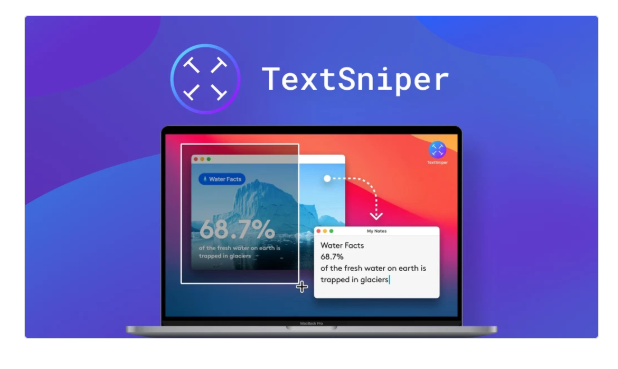
TextSniper is a tiny Mac app that quietly lives in your menu bar. With one shortcut, you can highlight any area on your screen — and it instantly grabs the text from it.
No fancy interface. No waiting. No learning curve.
Just quick, clean, and insanely useful text extraction from:
- Screenshots
- Videos
- Online courses
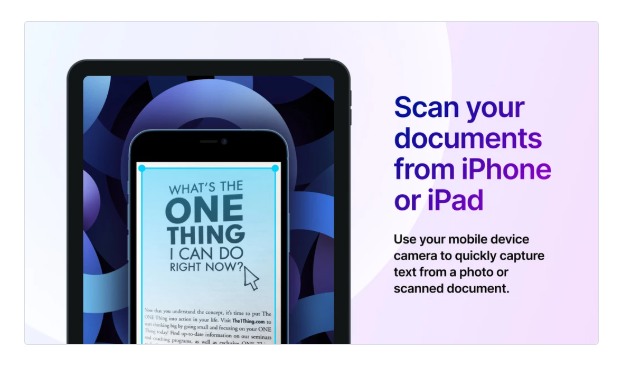
- PDFs (even the scanned ones)
- Images
- Slide decks
- Zoom calls
- You name it
And here’s the kicker — it works even when the text isn’t selectable. If you can see it, TextSniper can probably copy it.
🧠 Why It Works So Well
You know those moments where you pause a video just to jot down a line of code or a quote? With TextSniper, that becomes a 3-second task.
Here’s what makes it such a gem:
✅ Super Fast
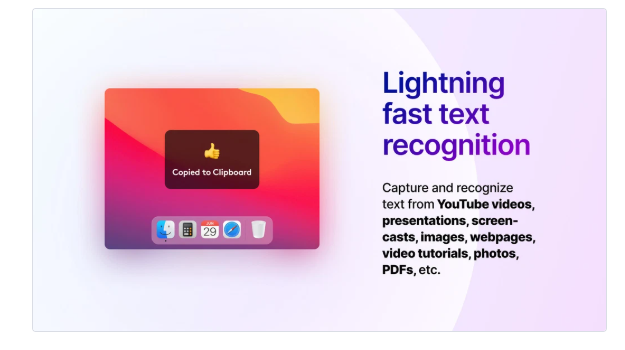
Press the shortcut, drag across your screen, and the text is copied to your clipboard. That’s it.
✅ No Internet Needed
It works offline. Fully. So your private data stays, well… private.
✅ Lightweight & Unintrusive
Unlike some bloated apps that bog down your Mac, TextSniper runs so quietly you’ll forget it’s there — until you need it.
✅ Reads Aloud Too
There’s a built-in text-to-speech feature. Perfect for proofreading or if you learn better by hearing.
✅ Supports Multiple Languages
TextSniper isn’t just for English. It supports over 10 languages and counting, including German, Spanish, French, and more.
How I Use TextSniper (Real-Life Examples)
This isn’t just some theoretical productivity app. I use it daily, and I’ve found a ton of practical ways to get value out of it.
💻 1. Capturing Quotes from Videos
I follow a lot of online lectures and YouTube tutorials. When the instructor says something important, I just pause, highlight the screen with TextSniper, and paste the quote into my notes.
📄 2. Grabbing Text from Scanned PDFs
Ever tried copying text from a scanned document? It doesn’t work. TextSniper turns that frustration into a one-click solution.
🧾 3. Copying Code from Images
I often find code examples shared in screenshots. Instead of manually retyping them (and risking typos), I use TextSniper to grab them instantly.
🧠 4. Saving Ideas from Twitter, IG Stories, or Zoom
I’ve even used it during webinars to capture great one-liners that would’ve otherwise disappeared forever.
Pros and Cons of Using TextSniper
❤️ What I Love:
- It just works — no tutorials needed
- Saves time, period
- Reliable and fast
- Doesn’t share your data (huge plus)
- Incredibly affordable
- Clean, no-clutter experience
😕 A Few Downsides:
- Only available for Mac (sorry Windows users)
- Doesn’t work on handwriting
- Can’t export to PDF or other formats — just copies to clipboard
- You need to assign your own shortcut (tiny learning curve)
Who Should Use It?
Honestly? Anyone who works with text and visuals on a Mac.
Here’s who I think would love TextSniper the most:
- Students who are copying notes from online classes or lectures
- Bloggers & writers who constantly pull quotes from screenshots
- Developers who extract code from tutorials and documentation
- Customer support teams who analyze screenshots
- Designers & QA testers who review text in mockups or prototypes
- Remote workers capturing meeting notes from Zoom or presentations
If you spend your day between screens, you’ll find at least 5 ways to use it — probably on day one.
Let’s Talk Pricing (Spoiler: It’s Cheap)
This is one of my favorite parts about TextSniper.
No subscription. No monthly fees. No upsells.
💵 One-time cost: $7.99 USD
That’s it. You pay once and own it forever — with updates included.
And for something that saves me hours each week, that price is more than fair. Honestly, I would’ve paid double if I’d known how much use I’d get out of it.
Quick Comparison with Other OCR Tools
| Feature | TextSniper | Adobe Acrobat OCR | Online OCR Tools |
|---|---|---|---|
| Mac-native | ✅ Yes | ❌ No | ❌ No |
| Works Offline | ✅ Yes | ❌ No | ❌ No |
| One-Time Fee | ✅ Yes | ❌ Monthly | ✅ Some |
| Reads Aloud | ✅ Yes | ❌ No | ❌ No |
| Easy to Use | ✅ 3-sec setup | ❌ Complex | ✅ Browser only |
Final Thoughts – Is TextSniper Worth It?
Let me say this clearly:
If you use a Mac and you’ve ever typed out text from an image, a video, or a slide — then yes, TextSniper is absolutely worth it.
It doesn’t try to do too much. It’s not bloated or flashy. It just solves one problem really well — and it does it better than anything else I’ve tried.
Once you start using it, you’ll wonder how you managed without it.
🎯 Ready to Try It?
Seriously — if you’re still manually retyping stuff from your screen… stop. Do yourself a favor.
👉 Download TextSniper for Mac – Official Site
👉 Buy Now – Only $7.99 One-Time